


Parental Controls App by Ohana
3.511.00 Reviews
App Specs
- Version
- 4.62.0
- Updated On
- License
- Free
- Downloads
- 50,000+
- Developer
- ohana
- Categories
- Parenting
- Platform
- Android
Screenshots

 Analysis by AppCompare
When a parental-control app becomes part of family life, the hard part is rarely deciding that limits would help. It is making those limits understandable, setting them up without turning a quiet evening into a technical project, and knowing what to try when a rule does not seem to work. I find Parental Controls App by Ohana most useful when parents treat it as a practical aid to conversations about device habits, rather than a substitute for them.
Where setup can feel less simple
The app is designed for parents who want to manage screen time, app access, and children’s internet use from a parental-control tool. The developer is ohana, and the app is free to install, with optional in-app purchases priced from $3.99 to $99.99 per item. That range is worth keeping in mind before you commit to any paid option: I would first identify which controls your household actually needs, then decide whether a purchase makes sense.
Pairing a child’s device is the point where a family may need to slow down and follow the instructions carefully. A parent’s app and a child’s device have different roles, and selecting the wrong one during setup can make the process confusing. I’d set aside a calm moment, keep both devices nearby, and make sure the child knows why the controls are being introduced. That small bit of preparation can prevent the setup from feeling like a surprise restriction.
It also helps to begin with a short list of household rules instead of trying to configure every possible boundary at once. For example, decide whether your main concern is bedtime scrolling, a particular distracting app, or safer browsing. A focused first setup is easier to explain and easier to review later than a large collection of limits whose purpose nobody remembers.
Checks that make the first run smoother
Before changing a rule because it appears not to take effect, I’d check the basics: is the child’s device the one paired with the parent account, is the intended app or web access covered by the setting, and has the device had a chance to reflect the change? These are general troubleshooting checks, not a guarantee that every issue has the same cause. They can, however, help separate a setup mix-up from a larger technical problem.
Start with one simple test that is easy to observe, such as a screen-time boundary you have already explained to your child. Then check what happens on the child’s device rather than relying only on the parent’s expectation. If the result is different from what you intended, revisit the selected device and the rule itself before adding more restrictions. Changing several settings together makes it harder to tell which adjustment helped.
Compatibility is another practical first check. The app’s listed minimum operating system is Android 8.0, so a device running an older version may not be a suitable place to begin. The current version is 4.62.0. I would check the version and operating-system details on the devices involved before investing time in a full household setup.
Worth Reading Before You Choose

EA SPORTS FC Mobile 26 Is a Bigger Football Game, but It Takes Time

Flipboard Shows What News Apps Must Do Beyond the Feed

Switching to Android Auto Means Rethinking Your Driving Routine

Google Calendar Makes a Crowded Week Easier to Manage

Ludo King Makes the Most of the Minutes Between Plans

Baby Panda World Brings Quick Play to Modern Phones, but Its Game Library Feels Busy
Recovering a routine when a rule goes wrong
If a limit or block does not behave as expected, I’d avoid immediately stacking on stricter controls. First, confirm the rule’s purpose, review which device it applies to, and make one adjustment at a time. A clear test after each change gives you a better chance of spotting whether the issue was a selection mistake, a misunderstanding of the rule, or something that needs further troubleshooting.
There is also a family-side recovery step: explain what the rule is supposed to do and ask the child what they see. That is not just a courtesy. A child may be using a different device than the one you expected, or may have misunderstood when a screen break begins. Keeping the conversation calm can reveal a simple mismatch before it becomes an argument about whether someone is “getting around” the controls.
For a recurring problem, write down the setting you changed and what happened afterward. Even a brief note can stop you from cycling through the same adjustments and help you describe the issue clearly if you seek support. I would keep this focused on the practical facts—device, setting, and result—rather than recording unnecessary details about a child’s activity.
When the app may not be the cause
Parental controls can only help with the devices and situations they are set up to manage. If a child switches to another device, uses a connection or account outside the household setup, or encounters a problem unrelated to the selected limits, a control in Ohana may not address it. That is why I would treat app rules as one layer of family guidance, alongside age-appropriate conversations and ordinary device-safety habits.
It is also useful to distinguish between a rule that is not working and a rule that is working differently than a parent imagined. A time boundary, an app restriction, and a web-access control are separate kinds of intervention; one should not be assumed to replace the others. Be precise about the outcome you want, then check the relevant control rather than expecting a single setting to cover every online situation.
The app is rated for Everyone, and it has an average rating of 3.6 from around 550 ratings, with 11 written reviews. Those figures suggest that families’ experiences are not identical, so I would approach it with realistic expectations: use the available controls for a clear purpose, test the arrangement at home, and judge whether it fits your devices and routines rather than assuming it will solve every concern.
What Makes Ohana Stand Out?
First things first, let’s chat about what makes Ohana a contender in the crowded world of parental control tools. Ohana isn’t just about slapping restrictions on devices; it’s more like a digital guardian angel.
One of the things I loved right off the bat was how user-friendly the interface is. I’m talking about a clean design with intuitive navigation, which means less time fiddling around and more time actually using the app for what it’s meant to do. Setting it up is a breeze, even if you’re not exactly a tech guru.
Features That Matter
Okay, let’s get into the juicy bits – the features. With Ohana, you’re looking at a suite of tools that give you control over screen time, app usage, and web access. It’s comprehensive but doesn’t feel overwhelming.
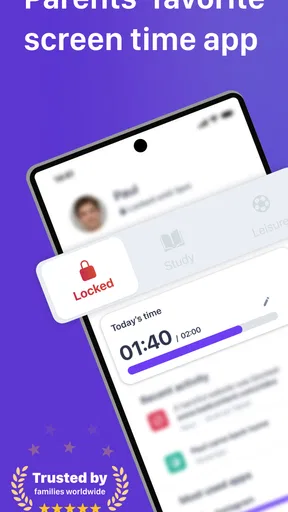
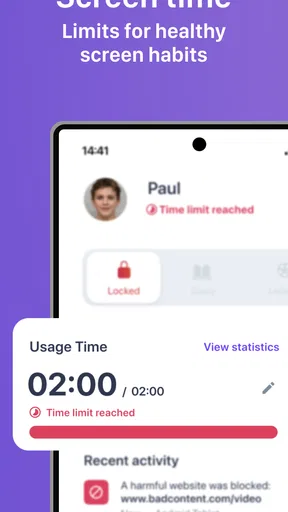
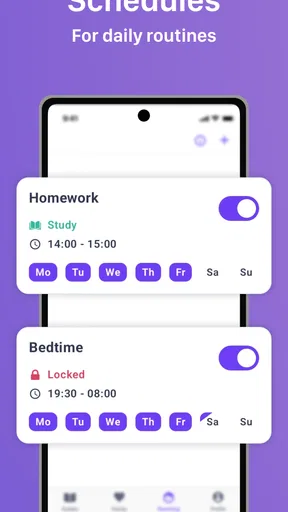
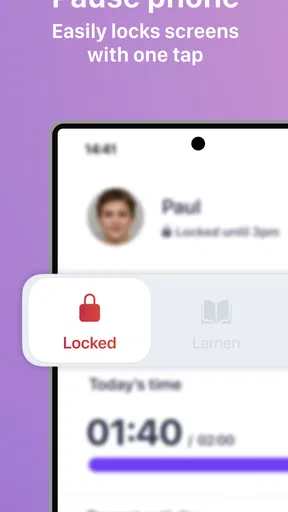
Screen Time Management: This is a lifesaver for those of us trying to balance screen time with homework and family time. You can set daily limits, schedule device-free times (like during family dinners), and even reward extra time for chores done well.
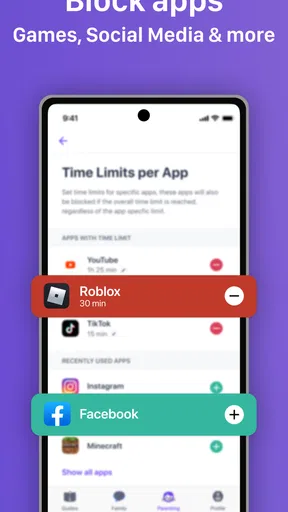
App Monitoring: Kids love their apps, and with Ohana, you can see which apps are being used the most. You can also block certain apps altogether or set specific usage limits.
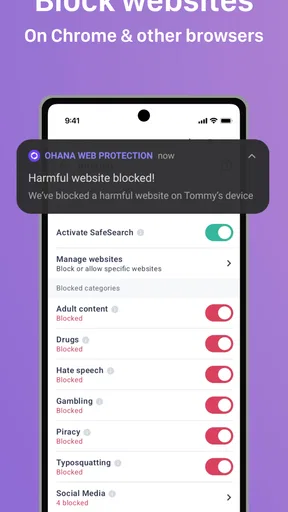
Web Filtering: The internet is a vast place, and not all of it is kid-friendly. Ohana offers robust web filtering options that allow you to block inappropriate content and keep an eye on browsing history.
Making limits work in everyday family life
The most useful way to approach these controls is to connect each one to a real routine. A school night, for instance, might call for a predictable device-free period rather than a series of unpredictable blocks. If a child uses a device for homework, think through how a limit could affect that task before applying it. The goal is not simply fewer minutes; it is a rule that makes sense to the child and is realistic for the parent to maintain.
A practical example: after school, a child may need a tablet for an assignment, then want to move straight into games or videos. I’d agree on the homework window first, use the app’s controls to support the boundary that fits the household, and explain what happens when that time is over. If the restriction interrupts an assignment, the answer may be to revisit the routine—not to assume the child is deliberately testing the system.
One trade-off with app limits is that a blunt block can be easier to enforce but less flexible around changing plans. A daily allowance may suit a family with variable evenings better than a rigid schedule, while a recurring device-free time can make sense when dinner or bedtime is consistent. I would choose the smallest set of rules that addresses the actual friction in your home, then review it together after a few days.
Ohana has 50,000-plus installs and was released on May 3, 2022. Those details place it among established options parents may encounter, but they do not tell you whether its approach suits your child. I’d give more weight to whether the controls are understandable, whether the setup fits the devices you have, and whether your family can stick to the routine without constant negotiation.
Family Location Tracking
This feature is like having a GPS tracker in your pocket. It’s reassuring to know where your kids are, especially if they’re out and about. The location tracking is precise, and you can set up geofences to get alerts when your child enters or leaves designated areas.
Communication and Alerts
Staying in the loop is key, and Ohana does a great job with notifications. You’ll get alerts about your child’s activity, and if they try to access something they shouldn’t, you’ll know. Plus, there’s a messaging feature that lets you communicate through the app, keeping everything in one neat place.
Choosing between Ohana and simpler alternatives
Compared with relying only on a device’s built-in screen-time settings, a dedicated parenting app can feel more organized when a parent wants to handle several kinds of boundaries from one place. Built-in controls may be the better choice if your needs are limited to a basic time restriction and you prefer not to manage another app. Ohana is more relevant when you want to bring screen habits, app access, and internet safety into the same family discussion.
It is not automatically the best choice for every household. If you want a tool that works without family conversations, or expect a control app to prevent every online risk, this approach is likely to disappoint. Likewise, a parent who only needs one simple rule may find a separate parental-control app adds more setup and maintenance than value. I’d choose Ohana when its broader set of controls matches a real need, not just because more settings are available.
Privacy and Security
Let’s talk privacy because that’s a biggie. Ohana takes security seriously, with encryption and secure data storage. You can rest easy knowing your family’s data is in safe hands.
One thing I appreciate is that Ohana respects the balance between monitoring and privacy. It’s not about snooping; it’s about ensuring safety and promoting healthy digital habits.
Setting It All Up
Getting started with Ohana is straightforward. You download the app, create an account, and follow the setup wizard. You can install it on as many devices as you need, which is great for large families.
The process involves pairing your child’s device, which only takes a few minutes. Once that’s done, you’re in control and can customize settings to fit your family’s needs.
Who will get the most from it?
I’d consider Ohana for parents who want a single place to manage several everyday digital boundaries and are willing to explain those boundaries to their children. It may be especially useful when one parent is trying to make rules consistent across the family rather than relying on repeated verbal reminders. For younger children, a parent can frame limits as part of a routine; with older children, involving them in choosing reasonable boundaries can reduce the feeling that controls are arbitrary.
On the other hand, families who prioritize independence and minimal monitoring may prefer a lighter approach, such as agreeing on screen habits and using only the device’s basic controls. That can be a better fit when trust and self-management are the main goals. The right choice depends less on how many controls an app offers and more on whether your family can use them transparently and consistently.
For families with multiple devices, I would make a small inventory before setup: which child uses which device, which one is shared, and which rules should apply to each. This is a simple but often overlooked step. Shared tablets in particular can blur the line between a child’s personal routine and a family device, so agree on how the controls should work before pairing or changing settings.
Final Thoughts
So, is the Parental Controls App by Ohana worth it? In my opinion, absolutely. It’s not just about restricting access but rather about empowering parents and kids to create healthier digital habits. With its user-friendly interface, comprehensive features, and focus on privacy, Ohana is a solid choice for any family looking to navigate the digital world safely.
If you’re ready to take the plunge, check out the download links available on our site and give it a whirl. Remember, it’s all about finding what works best for your family, and Ohana might just be the perfect fit.
Pros
- User-friendly interface for easy setup.
- Comprehensive activity monitoring features.
- Customizable screen time limits.
- Real-time location tracking for safety.
- Cross-platform compatibility.
Cons
- Limited features on the free version.
- Can drain battery quickly.
- Requires stable internet connection.
- May slow down device performance.
- Some features are subscription-based.
FAQs for Parental Controls App by Ohana
What features does the Ohana Parental Controls App offer?
The Ohana Parental Controls App offers a variety of features designed to help parents manage their children's device usage. Key features include screen time management, app blocking, web filtering, and location tracking. Additionally, parents can receive real-time alerts and detailed activity reports to ensure their child's digital safety.
Is the Ohana Parental Controls App compatible with both Android and iOS devices?
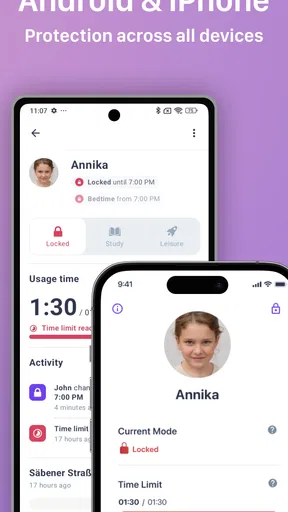
Yes, the Ohana Parental Controls App is compatible with both Android and iOS devices. This cross-platform compatibility ensures that parents can manage and monitor multiple devices within a single family, regardless of the operating system, making it a versatile solution for families with diverse tech needs.
How does the app ensure the security and privacy of my child’s data?
Ohana takes security and privacy very seriously. The app uses advanced encryption methods to protect all data. It strictly follows privacy regulations and does not share your child's data with third parties. Parents can rest assured knowing that their family’s information is kept confidential and secure.
Can I customize the settings for each child individually?
Yes, the Ohana Parental Controls App allows parents to customize settings for each child individually. This means you can set different screen time limits, app access permissions, and web filters based on each child’s age and needs, providing a tailored approach to digital parenting.
What should I do if I encounter technical issues with the app?
If you encounter any technical issues with the Ohana Parental Controls App, you can reach out to their customer support team via email or live chat. Additionally, the app offers a comprehensive help section with troubleshooting guides and FAQs to assist with common problems, ensuring prompt resolution.


